Tech, Tips, and Tutorials.
Reviews, News, and Rants.

Showing posts with label firefox. Show all posts

How to make your Laptop’s Touchpad work better in Firefox

After you’ve learned all the main keyboard shortcuts, it’s time to make your laptop touchpad work as great in Firefox as you do.

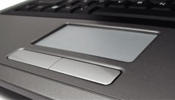
Most laptop trackpads use Synaptics touchpad drivers. This tutorial will teach you how to configure your trackpad’s settings to maximise efficiency when using Firefox. [photo by pzado]

Get to the settings

Go to Control Panel, then open Mouse, and click the Device Settings tab. Click “Settings…”.

Make sure you Enable Tap Zones, under the Tapping > Tap Zones item.

This will enable your touchpad to accept special commands if you click one of the 4 corners.

Switch tabs using Tap Zones

Wouldn’t it be great if you just tapped the top right corner to go to the next tab? Or the top left corner to go the previous tab?

Difficulty Level: Medium to easy

  1. Click the plus sign next to the Tap Zones item. Click Top Right Action.
  2. From the list, choose Record and play a sequence of keystrokes.
  3. Hit Configure

In the prompt that appears, enter the following:
{CONTROL_DN}{TAB}{CONTROL_UP} This will tell it to press Ctrl+Tab every time you hit the top right corner of your trackpad. Useful for switching tabs in Firefox!

To do the opposite when you hit the top left corner, do this:

  1. Click Top Left Action
  2. As before, choose Record and play a sequence of keystrokes.
  3. Hit Configure

In the prompt, enter:
{CONTROL_DN}{SHIFT_DN}{TAB}{SHIFT_UP}{CONTROL_UP}

Extra: Enable middle-clicking

Everybody knows that a middle-click will open a link in a new tab. It’s a great time saver.

To enable this functionality in your touchpad,

  1. Select either one of the bottom corners
  2. Select Middle click from the list

That’s a wrap. Hope this tutorial (and this one) will help make you more productive in Firefox!

Continue Reading

Use Keyboard Shortcuts to be more Efficient in Firefox

Browsing the web, especially on a laptop, is frequently bogged down by inefficient practices.

Besides often having a patchy Wi-Fi connection, you don’t want your browsing experience to be slowed down by the inefficiency of a laptop’s trackpad.

Use a keyboard as much as possible.

Here are some quick keyboard shortcuts to make using Firefox on a laptop faster (at least on Windows).

Learn the keyboard shortcuts

  • Ctrl+T opens a new tab
    Shift+Ctrl+T re-opens a closed tab
  • Ctrl+F4 or Ctrl+W closes a tab
  • Ctrl+Tab switches to the next tab
    Shift+Ctrl+Tab switches to the previous tab
  • F5 or Ctrl+R reloads a page
    Ctrl+F5 refreshes the cache and reloads
  • F6 or Ctrl+L highlights the location bar
    Ctrl+K highlights the searchbar

And 3 mouse & keyboard tricks:

  • Ctrl+Click opens the link in a new tab
  • Shift+Click opens the link in a new window
  • Alt+Click downloads the link to your desktop

After you learn these, you can learn how to make your laptop’s touchpad work better in Firefox.

Continue Reading

Safari 4 beta arrives, is fast, but still not the fastest (review & screenshots)

Apple have made waves with a tentative update to Safari, their internet browser, pushing it up to Safari 4 beta.

Despite its beta label, the excitement surrounding it has been huge, with multiple blogs posting first-looks and reviews. Here’s my quick review and screenshot tour.

GUI / Appearance

First off, kudos to Apple for working hard to make it look a little more like a native Windows application. It has standard Windows-controls up top for minimise, close, etc. It now finally looks like it belongs on Microsoft’s OS.

Apple have made the decision to use standard Windows font rendering by default, meaning most users won’t be taken aback by Apple’s blurred font rendering (you can blur your fonts again by going to preferences).

Interface: Chrome-inspired, only sleeker

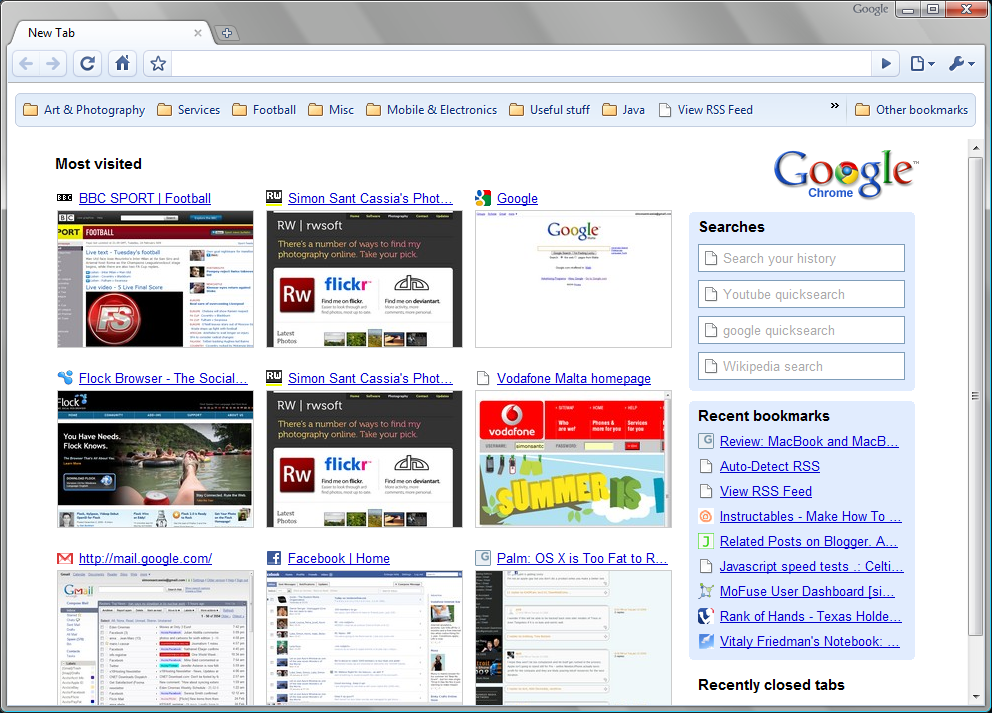
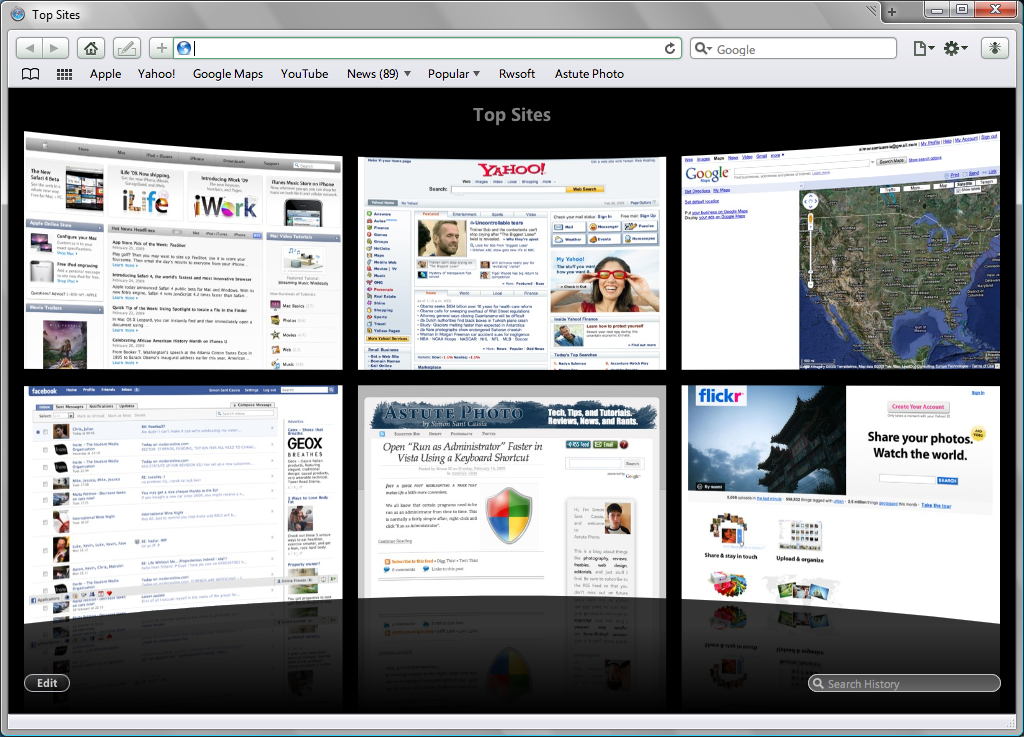
The interface itself reminds me a lot of Google Chrome.

Some parts are a complete ripoff – except that Safari has more visual polish and sleekness than Google’s browser.

Take a look at the new, top-mounted tabs (top is Chrome, bottom is Safari):

… and the similar side buttons:

… and the “Top Sites” page, borrowed from Chrome (and made pretty by Apple):

  vs. 

Tabs

The tabs are now top-mounted, just like in Chrome. Combining the title-bar and the tab-bar makes perfect sense, and makes great use of space.

The open tab is a little larger than the ones around it, and this helps give it prominence. Favicons aren’t shown in the tab/title bar and this is a little annoying.

Two things annoyed me. Tab reordering is controlled by these little grab-things on the sides of the tabs, which requires unnecessary mouse movement.

The other thing that annoyed me was that a middle-click doesn’t close tabs, it treats it like a normal click (i.e. switches to that tab). I’m too lazy to move my mouse to the close button, so fix it Apple!

Overall tab control is fine – not quite as good as Chrome’s, but much better than Firefox’s. Naturally you can tear them off to make new windows, just like in Safari 3.

Speed

  • Feels about as fast as Chrome at loading pages.
  • If it has a chance to cache the page first, it makes a huge difference.
  • Starts up very quickly, but still not as quickly as Chrome.
  • Firefox takes an age to start up after switching on, but it’s handicapped by me, since it has around 12 extensions running.

Overall it’s very, very snappy

But my testing (using timers and everything) shows it’s still not as fast as the current benchmark, Google Chrome.

Chrome bested its performance on every count, including: page load times, start up time,  memory handling, and others.

I wasn’t impressed by…

The bookmark/history coverflow. For how I work, it just isn’t useful. But more eye-candy is always nice.

The lack of an import bookmarks function. This was present in Safari 3 so I can’t imagine why Apple left it out. (I just didn’t see it, it’s under the File menu, accessible by pressing Alt).

The constant crashing. I saw a lot of this:

It’s pretty serious, as it happens every few seconds or so. Even though for some reason it doesn’t appear to do very much. The program rarely actually closes when you choose either of these two options.

The lack of an extensions platform. It’s been missing for a while and Safari isn’t the only offender.

But seriously, Firefox pretty much wrote the book on extensions, and it’s the deal-killer that means I will stick with the Fox for a while longer.

Continue Reading

9 Firefox Extensions I couldn’t live without

I’m a bit of an extension-addict. While I worry that my Firefox will slow down, I worry even more that I’m not fully making use of all the capabilities that Firefox can offer me.

What’s Firefox? In case you’ve been living under a rock (or just aren’t tech savvy), Mozilla Firefox is a web browser. You use it to view websites, just like Internet Explorer, only much, much better, in every way.

In the list below, I’ve listed 9 extensions which I use in varying frequencies.

Note: While these extensions work for me, I couldn’t imagine that I use the same as everyone else. This is just a personal list.

Critically important

Here are 3 ultra-important extensions which I use daily to help me get work done.

1. Firebug
It’s fair to say enough’s been said about this one extension that whatever I add is already redundant. It makes web-development fun again. It offers things like real-time editing of things like CSS, a powerful Javascript debugger and console, and a way to inspect and edit HTML.

I use it in a very simple way. When editing a site, I simply create a basic CSS style, load it in Firefox, hit F12, click Inspect, and I’m in the money. In plain terms, if you do web-design, then you have to get this.

2. Foxmarks

A lifesaver if you have more than one computer. Foxmarks makes it amazingly simple to have the exact same set of bookmarks across computers running Firefox.

Essentially - you create an account, and it stores your bookmarks on a secure server. Then Foxmarks will download the stored bookmarks and merge them with your current set (or it can simply replace everything). Every time you edit your bookmarks (e.g. adding a new one or re-ordering them), Foxmarks will silently back them up to its servers.

As an added bonus, you can access your bookmarks anywhere by going to http://my.foxmarks.com and entering your username and password.

3. IE Tab

Does what it says on the tin, and quite brilliantly too. Need to test a site in Internet Explorer? Hate using Internet Explorer? Try this.

Successfully runs Microsoft Update, and even Active X controls. A saviour for those sites who don’t fully work with Firefox. Excellent extension.

Very useful

I also use these 4 extensions very often. They save me quite a bit of time and are just plain helpful.

4. CoLT
Short for “Copy Link Text”, CoLT does its relatively simple job spectacularly well. It makes it “easier than ever to copy a hyperlink’s associated text”. Visit the home page for a better-explained article at what it can do.

5. FireShot
It offers both a free and a pay version. The free version is very useful for my intended use. It basically offers the ability to create screenshots of webpages, both the visible area, or the entire page. Fireshot offers a variety of ways of saving your screenshot – I often just save it to the desktop or onto the clipboard. It also offers annotation and editing tools although I seldom use them.

6. Firesizer
A very handy, tiny extension which displays the current size of the Firefox window, and allows you to resize the window according to pixel-dimensions. Firesizer is useful for testing fixed-width layouts.

7. Flagfox
Ultra-useful addon for displaying information about a website – including location (using Google maps) and server information.

Handy

Here are 2 extensions which I find useful from time to time.

8. UnMHT
Empowers Firefox with the ability to save and write MHT files, a standard used for saving complete web pages.

9. Opanda IExif
Requires you to install the excellent IExif program first. This Firefox extensions offers right-click access to a photo’s EXIF information.

Continue Reading