Tech, Tips, and Tutorials.
Reviews, News, and Rants.

Showing posts with label laptop. Show all posts

Macbook-like Two Finger Scrolling in Windows

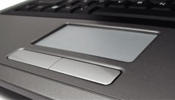
A useful but often overlooked feature of the modern Macbooks is the multi-touch trackpad. This work horse is capable of recognising many gestures, including two-finger scrolling and tapping. Let’s bring that functionality to Windows.

This is a mildly technical post detailing how to enable Macbook-like 2-finger scrolling on your Windows notebook touchpad.

My Digital Life has outlined the way to do this. The process is pretty involved.

First, you’ll need to download some modified Synaptics drivers1 . Then, follow the installation instructions detailed:

Installation:

  1. Uninstall all current Synaptics drivers from Control Panel’s Add and Remove Programs or Programs and Features.
  2. Restart the computer.
  3. Install the modded driver by running the setup.exe inside the ZIP archive.
  4. Windows should prompt a warning about unsigned driver. Continue to install the driver anyway.
  5. Restart the computer after installation is completed and Synaptics TouchPad driver is updated.
  6. In Device Manager’s Mouse and Other Pointing Devices” section, Synaptics PS/2 Port Touchpad should have driver version of 10.2.4.

When you’re done installing the modified driver, you have to install an open-source program called two-finger-scroll. There is no software to install, just double-click the executable file.

One last thing. In order for two-finger scroll to work properly, you need to disable all 2-finger commands, and all virtual scrolling except for horizontal (you might want to keep this on, since two-finger-scroll doesn’t work horizontally..

Disable 2-finger commands by going to: Control Panel > Mouse > Device Settings > "Two Finger Gestures and un-checking “Enable two finger gestures”.

Finally, disable virtual scrolling by going to: Control Panel > Mouse > Device Settings > Virtual Scrolling and un-checking “Enable vertical scrolling” and “Enable ChiralMotion scrolling”.

And you’re done!

Extra:
Two-finger-tap = right-click

You can also enable a two-finger-tap to mean a right click using the same application. Here are the settings I’ve used.


1: Enable Multi-Touch Gesture (Finger Scroll, Momentum, and ChiralMotion on Synaptics TouchPad in Windows 7/Vista/XP/Server [My Digital Life]

Disclaimer: Try this at your own risk. It worked for me, but it might not work for you. Whatever happens, I’m not responsible. Thanks!

Continue Reading

How to make your Laptop’s Touchpad work better in Firefox

After you’ve learned all the main keyboard shortcuts, it’s time to make your laptop touchpad work as great in Firefox as you do.

Most laptop trackpads use Synaptics touchpad drivers. This tutorial will teach you how to configure your trackpad’s settings to maximise efficiency when using Firefox. [photo by pzado]

Get to the settings

Go to Control Panel, then open Mouse, and click the Device Settings tab. Click “Settings…”.

Make sure you Enable Tap Zones, under the Tapping > Tap Zones item.

This will enable your touchpad to accept special commands if you click one of the 4 corners.

Switch tabs using Tap Zones

Wouldn’t it be great if you just tapped the top right corner to go to the next tab? Or the top left corner to go the previous tab?

Difficulty Level: Medium to easy

  1. Click the plus sign next to the Tap Zones item. Click Top Right Action.
  2. From the list, choose Record and play a sequence of keystrokes.
  3. Hit Configure

In the prompt that appears, enter the following:
{CONTROL_DN}{TAB}{CONTROL_UP} This will tell it to press Ctrl+Tab every time you hit the top right corner of your trackpad. Useful for switching tabs in Firefox!

To do the opposite when you hit the top left corner, do this:

  1. Click Top Left Action
  2. As before, choose Record and play a sequence of keystrokes.
  3. Hit Configure

In the prompt, enter:
{CONTROL_DN}{SHIFT_DN}{TAB}{SHIFT_UP}{CONTROL_UP}

Extra: Enable middle-clicking

Everybody knows that a middle-click will open a link in a new tab. It’s a great time saver.

To enable this functionality in your touchpad,

  1. Select either one of the bottom corners
  2. Select Middle click from the list

That’s a wrap. Hope this tutorial (and this one) will help make you more productive in Firefox!

Continue Reading

Use Keyboard Shortcuts to be more Efficient in Firefox

Browsing the web, especially on a laptop, is frequently bogged down by inefficient practices.

Besides often having a patchy Wi-Fi connection, you don’t want your browsing experience to be slowed down by the inefficiency of a laptop’s trackpad.

Use a keyboard as much as possible.

Here are some quick keyboard shortcuts to make using Firefox on a laptop faster (at least on Windows).

Learn the keyboard shortcuts

  • Ctrl+T opens a new tab
    Shift+Ctrl+T re-opens a closed tab
  • Ctrl+F4 or Ctrl+W closes a tab
  • Ctrl+Tab switches to the next tab
    Shift+Ctrl+Tab switches to the previous tab
  • F5 or Ctrl+R reloads a page
    Ctrl+F5 refreshes the cache and reloads
  • F6 or Ctrl+L highlights the location bar
    Ctrl+K highlights the searchbar

And 3 mouse & keyboard tricks:

  • Ctrl+Click opens the link in a new tab
  • Shift+Click opens the link in a new window
  • Alt+Click downloads the link to your desktop

After you learn these, you can learn how to make your laptop’s touchpad work better in Firefox.

Continue Reading

10 Tips to get Extra Juice out of your Laptop’s Battery

Spending hours and hours in University everyday, time and again I find myself craving a plug to charge my laptop from near-death.

It’s a terribly frustrating thing to see you computer lose power in front of your very eyes, forced to return to the arcane method of taking notes, pen and paper. It’s all very much last century.

Over time I’ve developed a few tactics to help me limp through a full day on a single charge. They may help you too (note: I’m using Windows Vista, which has a couple of power-saving features over XP).

Switch Profile to Power Saver
Perhaps the most obvious switch would be to switch the power profile. To do this, click once on the button in the system tray and select Power Saver from the list that appears.

Lower Display Brightness
Another obvious one. A bright LCD, while nice-looking, costs dearly in terms of power drain. Most laptops have keyboard commands to reduce the brightness.

Sleep Instead of Shutdown (Vista-only)
This is an important one. Whatever you do, don’t shutdown your computer. The time it takes to start up, and the power it needs to do so means that you typically lose around 5-8% charge just from a single restart. Sleeping is much more efficient. You can get back to work instantly. Sure, you lose a tiny amount of charge over time, but it’s more worth it. This is a Vista-only feature. XP users can try standby to see how that works.

Turn Off Wi-Fi, Bluetooth, and Other Wireless Connections
Unless you absolutely need it, I found that turning off the Wi-Fi receiver increased battery life considerably. I got an extra half hour just by turning it off. The same holds true for other wireless connections, like Bluetooth, just to a lesser extent. Once again, most laptops have switches somewhere on the casing to turn on/off the wireless receivers.

Remove USB Devices
USB devices, like pen-drives, and mice draw power. Remove them, simple as.

Lighten the Processor’s Workload
The processor takes up the most power, and so you’d want to ensure it isn’t working too hard. There are 2 ways to ensure you’re not straining your CPU too much and the benefits are huge.

Firstly, the obvious stuff. Avoid graphics-intensive programs like games, and keep as few apps open as possible. I typically keep just a word processor open in class.

Secondly, there is actually a software switch to restrict your CPU’s power usage. To access it, click on the battery indicator in the taskbar, and click More power options. Then, under Power Saver, click to Change plan settings. Finally, click to change the advanced options. Find Processor Power Management to alter the minimum and maximum processor states.

I typically keep it at a minimum of 40% and a max of 75%, but I’ve successfully taken the levels even lower. Be careful though, because setting it too low will cause the laptop to crash. Either way, prepare for a major slowdown in general computer use. Files will take longer to save, and applications will run sluggishly. It will also take longer to go to sleep and wake it back up. However, the benefits are worth it. I can squeeze an extra 50 minutes with this method.

Mute the Speakers
For some reason, I always seem to be able to get an extra 10 minutes by simply muting the speakers.

Look for Power Sockets
A tip that can never be under-estimated. Look around for power sockets so you can feed your laptop, even if it’s for just 10 minutes or so – it’s worth it.

I hope you enjoyed these tips. If you have any more to share, just leave it in the comments below.

photo credits: power cable and wifi switch
Continue Reading

Acer Extensa 5220 (and Vista)

Brief Thoughts

This is as much a short review on the notebook as well as a brief review of Microsoft's newest Operating System - Windows Vista.

Part One - The outside

The Acer Extensa 5220 is a mid-range notebook. With laptops, specs are everything - and the Extensa has some respectable figures.

Design-wise it seems decent enough. The body is a mix of a couple of dark greys and black. The outer parts are charcoal grey, and more of the inner sections are darker. The keyboard is black and has no backlighting (bummer). The sides and bottom aren't particularly clean, but that's not to say they're cluttered either. There are a few chrome accents to spice it up but in reality it's nothing particularly inspiring.

Physically, it weighs around 2.8kg, which I found to be quite lightweight. This is probably helped by the fact that it feels extremely balanced - I quite enjoy using it when it's sitting on my lap. It has a standard 1200x800 15.4" LCD. It uses what Acer call their CrystalBrite technology. I personally really enjoy using the screen, and Vista have their screen fonts slightly larger than XP's were for better readability.

The keyboard has an ergonomic perpetual curve which is absolutely love. I got used to the layout in a day and am now typing fairly quickly on it. I find the trackpad to be quite good, especially since it has a scroll wheel on the side.

Part Two - The specs

The all-important specs. If a laptop fails here it simply won't sell.

First off, let me explain that I bought this laptop for simple stuff: emailing, blogging, programming, etc. I wanted a portable workstation, simply an extension to my home computer. As such I didn't need great specs, but Windows Vista demands a minimum level of performance.

It packs an Intel Celeron 1.86 GHz. It's quite good, even though all in all it's nothing special. To compensate for this I got a €60 upgrade to 2GB RAM. It originally had 1GB. I find the computer's multitasking to be more than adequate.

It's got an 80GB hard-drive, which may be considered quite small, indeed I do find it quite limiting, but I plan to add an external USB HDD to compensate.

Part Three - Windows Vista

I was convinced that this was going to be my least favourite part of the computer. I knew Vista to be slow, clunky, and excessively security-oriented - making it extremely annoying to use. However I quickly set about downloading some programs to ease my experience. I highly recommend Tweak UAC.

Very quickly, Vista grew on me. I'm now at the stage where I got used to the interface, and have come to appreciate some of the genuine improvements it offers over XP. I love the new shellstyle(?), and I also like the idea of putting all the networking options in one place. This tripped me up at first but now I prefer it. I managed to connect to the internet just 20 minutes after turning it on for the first time (time includes Vista installation).

Since it's been out for quite a while, there were numerous security updates and other patches to be installed. It was all automated, with Vista installing around 49 updates in total, and I restarted around 4 times, however you could restart at your leisure so it wasn't a problem.

Vista seems to have a bit better memory management than XP. When switching between apps, the machine didn't slowly churn into life; it was a fast and seamless process. I also love the new user log-in page, with the huge user icons.

The eye candy has been kept at a respectable level, the transparency has been disabled (this is Vista Home Basic - no extra eye candy), however I did enable the Aero interface by a little hacking of the registry.

Conclusion

Well, I think that overall I'm extremely satisfied with the Acer Extensa 5220. Now that I've ironed out the workflow bumps and I've taken care of most of the "new computer" bloated pre-installed software, most of which turned out to be really good.

It's a typical mid-range notebook that's not overly capable, and certainly doesn't disappoint. It's a laptop that feels well "sorted". This is supported the very good keyboard and trackpad, as well as the placement of certain elements to enhance usability - including speakers placed in the front, and heat vents in a logical position.

All in all, it's fair to describe it as fairly average, but very useable. I'm certainly very happy with it, and it's not likely to annoy many people.

Rating: Solid Recommendation

Extra: Recommended Programs

Below is a list of programs I recommend to use with Vista. All of them are free downloads. Click on the name to go to their download sites.

Continue Reading

Asus Eee PC: Overview

Eee PC front In June 2007, Asus released the revolutionary new Eee PC. Originally intended as an ideal first computer for elderly citizens and children alike, the Eee PC has instead proved very popular among power users of Linux and a few business users.
What is it exactly?

The Eee PC stands for Easy to learn, Easy to work, Easy to play. Realising that most people use laptops for internet-based applications such as Web Browsing, Emailing, Instant Messaging, etc, Asus built this machine around those kinds of requirements. It is touted to offer Complete Mobile Internet Enjoyment.

Why is it so 'Revolutionary'?

The Eee PC is a great little piece of kit.

By little, I actually meant tiny. The sub-notebook (?) is not much larger than a hardcover book, and much smaller than conventionally sized laptops. The keyboard is also said to be fairly decent, despite the smaller size. The same can be said for the trackpad.

Weighing in at just 920g and running a 900MHz Intel Celeron Processor with (typically) 512MB worth of RAM, this laptop ought to cost more than what is being asked for it.

It's cheaper than some mobiles and much cheaper than anything in its class. It isn't meant to compete with bargain notebooks, although it will inevitably be compared to one due to its low price.

How good is it for a Photographer?

For digital photographers who have been searching for an ultra-portable solution to back up their data on the go. It's especially suited to the travelling photographer who needs the small size. However, there are a few drawbacks, especially for a photographer.

Drawbacks

  • 7-inch screen not great for extended photo viewing & editing — 800x480 resolution not perfectly ideal, but still seems to be serviceable.
  • Limited hard drive space — because of the nature of solid-state memory, the Eee PC typically comes packed with just 4GB worth of internal memory. At least it's easy to overcome this with cheap external solutions.
  • Slightly cramped keyboard & trackpad — but not too bad according to reports.
  • Most significantly, it doesn't come with Windows XP pre-installed. Instead, it is running a custom version of the Linux OS. This keeps the price down since Linux is free. It is possible to install Windows XP though, and the Eee PC even comes with instructions on how to do it.

Recommendations

If you're looking for an ultra-portable laptop that still offers decent usability and is pleasant and fun to use, almost certainly get the Eee PC. If you really demand a lot of power from your computer and rely on Windows software, then consider a pass. However there are thousands of alternatives to the Windows software. Open Office is pre-installed, for example (replacing MS Office).

It's a seriously compelling device.

  • Suitable for: People who need it uber compact and lightweight, and have only basic needs (email, internet, document work, photo/video viewing, etc). Also for photographers looking for this kind of portability.
  • NOT suitable for: Demanding users, gamers, and people who rely heavily on Windows-only software (although thousands of free Linux-based alternatives exist).

Find out more

Additional images

(All pictures open links in a new window to their originating website)

from pcpro.co.uk from directron.com from trustedreviews.com

    Continue Reading