Tech, Tips, and Tutorials.
Reviews, News, and Rants.

Showing posts with label productivity. Show all posts

WrongRoom? The Scourge of the Full-Screen Text Editor

Software-engineering is very often a balancing act. We're constantly trying to add more features, while also trying to reduce overall complexity.

Nowhere is this more important than in a text editor.

Everybody has their text editor of choice — one which they stick by. There are legions of people who are very passionate about the subject.

There are plenty of text editors to choose from. Some are focused on providing a bazillion features, some focus on making it lightweight, and some just focus on making it easy to use.

There's so much variation — it's impossible to make a text editor that pleases everyone.

And that's the point. Your choice of text editor is a very personal affair — even if it's just Windows Notepad. What works for one person might not work for another.

A niche in text editors

Which brings us nicely to today's topic of discussion: full-screen text editors. "Distraction-free writing" that's been the scourge of power users and the dreamboat of novelists.

Their premise is simple. Offer a completely uncluttered interface for users who want to focus on just their text. WriteRoom started it all.

In a way, they remind me of another phenomena. Netbooks. Full-screen editors are to text editors what netbooks are to computers.

  • Full-screen editors are **intentionally primitive**. Just like netbooks, which sacrifice basic features for portability (like an optical drive).
  • Normal editors can do everything a full-screen editor can do. This is just like regular computers, which can do everything a netbook can.
  • There are loads around. WriteRoom, DarkRoom, JDarkRoom, DarkCopy, Q10, and many more. They all basically do the same thing. Much like netbooks, all having the same specs.

However, there are people who seem to hate them. Mark Pilgrim, in a 2007 article, has more.

"These programs aren't for serious writers at all. They're for the writer's equivalent of script kiddies - people who want to go to Starbucks and pick up chicks with their MacBooks and their iPods and their glowing full-screen text editors.

No doubt they will be wildly successful. Meanwhile, if you need me, I'll be in the corner writing my next book with a real text editor. I think it even has a full-screen mode."

What is he talking about? Perhaps he is more used to the traditional Text Editing Solution®.

What Mark Pilgrim has made abundantly clear is that: full-screen editors are an acquired taste.

Full-screen text editors: Useful? Maybe

It's not hard to see the appeal. Imagine an editor that just gets out of the way.

They hide all distractions (no Twitter, no Facebook, no Google!), and they're great for quickly firing up a text editor to take down some notes in class.

Okay, maybe they're not for everyone — just like a netbook.

Parting Note

Maybe you want the extra features. Maybe you want the extra power. Maybe you can deal with the extra distraction. Maybe you need every conceivable feature a text editor might need. Before you know it — we can end up looking like this:

As stated earlier, it's all a question of balance.

Over to you

Do you use a full-screen text editor? Did you ever use one? Do you like it? Please let me know your thoughts in the comments.

Full disclosure: I did indeed use a full-screen editor to write this post.

Continue Reading

Start Items from the Quick Launch Bar using a Keyboard Shortcut

Here’s another quick tip on how to be more productive. Many people have their Quick Launch Bar set near the Start button. A bit like this (without the big icons):

To launch these applications, all I have to do is press the Windows Key, and the corresponding number.

For example Win+1 will launch Firefox, Win+4 will launch iTunes, and so on and so forth.

Just organise your most frequent programs to the left to experience a nice little boost in productivity.

One more thing: many programs just add themselves to your Quick Launch Bar without warning. Clear out these if you don’t need them!

So, to recap…

Continue Reading

How to make your Laptop’s Touchpad work better in Firefox

After you’ve learned all the main keyboard shortcuts, it’s time to make your laptop touchpad work as great in Firefox as you do.

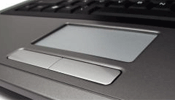
Most laptop trackpads use Synaptics touchpad drivers. This tutorial will teach you how to configure your trackpad’s settings to maximise efficiency when using Firefox. [photo by pzado]

Get to the settings

Go to Control Panel, then open Mouse, and click the Device Settings tab. Click “Settings…”.

Make sure you Enable Tap Zones, under the Tapping > Tap Zones item.

This will enable your touchpad to accept special commands if you click one of the 4 corners.

Switch tabs using Tap Zones

Wouldn’t it be great if you just tapped the top right corner to go to the next tab? Or the top left corner to go the previous tab?

Difficulty Level: Medium to easy

  1. Click the plus sign next to the Tap Zones item. Click Top Right Action.
  2. From the list, choose Record and play a sequence of keystrokes.
  3. Hit Configure

In the prompt that appears, enter the following:
{CONTROL_DN}{TAB}{CONTROL_UP} This will tell it to press Ctrl+Tab every time you hit the top right corner of your trackpad. Useful for switching tabs in Firefox!

To do the opposite when you hit the top left corner, do this:

  1. Click Top Left Action
  2. As before, choose Record and play a sequence of keystrokes.
  3. Hit Configure

In the prompt, enter:
{CONTROL_DN}{SHIFT_DN}{TAB}{SHIFT_UP}{CONTROL_UP}

Extra: Enable middle-clicking

Everybody knows that a middle-click will open a link in a new tab. It’s a great time saver.

To enable this functionality in your touchpad,

  1. Select either one of the bottom corners
  2. Select Middle click from the list

That’s a wrap. Hope this tutorial (and this one) will help make you more productive in Firefox!

Continue Reading

Use Keyboard Shortcuts to be more Efficient in Firefox

Browsing the web, especially on a laptop, is frequently bogged down by inefficient practices.

Besides often having a patchy Wi-Fi connection, you don’t want your browsing experience to be slowed down by the inefficiency of a laptop’s trackpad.

Use a keyboard as much as possible.

Here are some quick keyboard shortcuts to make using Firefox on a laptop faster (at least on Windows).

Learn the keyboard shortcuts

  • Ctrl+T opens a new tab
    Shift+Ctrl+T re-opens a closed tab
  • Ctrl+F4 or Ctrl+W closes a tab
  • Ctrl+Tab switches to the next tab
    Shift+Ctrl+Tab switches to the previous tab
  • F5 or Ctrl+R reloads a page
    Ctrl+F5 refreshes the cache and reloads
  • F6 or Ctrl+L highlights the location bar
    Ctrl+K highlights the searchbar

And 3 mouse & keyboard tricks:

  • Ctrl+Click opens the link in a new tab
  • Shift+Click opens the link in a new window
  • Alt+Click downloads the link to your desktop

After you learn these, you can learn how to make your laptop’s touchpad work better in Firefox.

Continue Reading

Open “Run as Administrator” Faster in Vista Using a Keyboard Shortcut

Just a quick post highlighting a trick that makes life a little more convenient.

We all know that certain programs need to be run as an administrator from time to time. This is normally a fairly simple affair, right-click and click “Run as Administrator”.

Time Saver

However if you want to save that extra second of time, hold down the Shift & Ctrl keys and click on the program directly. You’re welcome.

Continue Reading

10 Tips to get Extra Juice out of your Laptop’s Battery

Spending hours and hours in University everyday, time and again I find myself craving a plug to charge my laptop from near-death.

It’s a terribly frustrating thing to see you computer lose power in front of your very eyes, forced to return to the arcane method of taking notes, pen and paper. It’s all very much last century.

Over time I’ve developed a few tactics to help me limp through a full day on a single charge. They may help you too (note: I’m using Windows Vista, which has a couple of power-saving features over XP).

Switch Profile to Power Saver
Perhaps the most obvious switch would be to switch the power profile. To do this, click once on the button in the system tray and select Power Saver from the list that appears.

Lower Display Brightness
Another obvious one. A bright LCD, while nice-looking, costs dearly in terms of power drain. Most laptops have keyboard commands to reduce the brightness.

Sleep Instead of Shutdown (Vista-only)
This is an important one. Whatever you do, don’t shutdown your computer. The time it takes to start up, and the power it needs to do so means that you typically lose around 5-8% charge just from a single restart. Sleeping is much more efficient. You can get back to work instantly. Sure, you lose a tiny amount of charge over time, but it’s more worth it. This is a Vista-only feature. XP users can try standby to see how that works.

Turn Off Wi-Fi, Bluetooth, and Other Wireless Connections
Unless you absolutely need it, I found that turning off the Wi-Fi receiver increased battery life considerably. I got an extra half hour just by turning it off. The same holds true for other wireless connections, like Bluetooth, just to a lesser extent. Once again, most laptops have switches somewhere on the casing to turn on/off the wireless receivers.

Remove USB Devices
USB devices, like pen-drives, and mice draw power. Remove them, simple as.

Lighten the Processor’s Workload
The processor takes up the most power, and so you’d want to ensure it isn’t working too hard. There are 2 ways to ensure you’re not straining your CPU too much and the benefits are huge.

Firstly, the obvious stuff. Avoid graphics-intensive programs like games, and keep as few apps open as possible. I typically keep just a word processor open in class.

Secondly, there is actually a software switch to restrict your CPU’s power usage. To access it, click on the battery indicator in the taskbar, and click More power options. Then, under Power Saver, click to Change plan settings. Finally, click to change the advanced options. Find Processor Power Management to alter the minimum and maximum processor states.

I typically keep it at a minimum of 40% and a max of 75%, but I’ve successfully taken the levels even lower. Be careful though, because setting it too low will cause the laptop to crash. Either way, prepare for a major slowdown in general computer use. Files will take longer to save, and applications will run sluggishly. It will also take longer to go to sleep and wake it back up. However, the benefits are worth it. I can squeeze an extra 50 minutes with this method.

Mute the Speakers
For some reason, I always seem to be able to get an extra 10 minutes by simply muting the speakers.

Look for Power Sockets
A tip that can never be under-estimated. Look around for power sockets so you can feed your laptop, even if it’s for just 10 minutes or so – it’s worth it.

I hope you enjoyed these tips. If you have any more to share, just leave it in the comments below.

photo credits: power cable and wifi switch
Continue Reading

Notepad2 (featured freeware)

This series takes a look at some of the best free software available on the World Wide Web.

The default plain text editor on Windows is called Notepad, and hasn’t had any major changes since its inception way back in 1985. Up until Windows 95, there wasn’t even a choice of fonts! Only Fixedsys was available.

However people today still use it on a daily basis because it offers fast, simple plain-text editing on the go. Just double-click on the file, change one or two things, Ctrl+S and we’re done.

It’s particularly popular among programmers and web-coders. But everyone is also aware of its many limitations. It doesn’t have auto-indent support, doesn’t support syntax highlighting, bracket matching, and other features such as regex-based find-and-replace.

Enter Notepad2

This is where Notepad2 steps in. Written by Florian Balmer, it is a free notepad-like app with the intent of replacing the original Notepad for day-to-day text slinging.

Besides having all the features mentioned above (the original Notepad’s limitations), it is also extremely fast and super-easy to use.

The deal-maker for me was the fact that it:

  • Supports automatic indentation
  • Has bracket matching
  • Supports syntax-highlighting for every major programming/scripting language out there. It recognises simple Java files, CSS, XML, and HTML files, and last time I was creating an Apache config. file, and it even recognised that
  • Has a multitude of customisable options and configurations to make it work exactly the same way you do.

Not once has Notepad2 let me down. Its features are almost perfect and it’s super fast. I also love the fact that it doesn’t support a multi-document interface. This is great because it’s simply meant to be a notepad replacement, not a full-featured IDE.

Download

Extra: Replace notepad.exe with Notepad2.exe

There would understandably be a great demand for this hack, since it would enable you to double-click on a text file and have Notepad2 take care of your editing work. No more right click > open with… > Notepad2.

Luckily, there is a solution! Try this hack, and if it doesn’t work, try a Google search.

Got a favourite editor you use? Perhaps you use the popular Notepad++ instead? Let me know in the comments!

Continue Reading