Tech, Tips, and Tutorials.
Reviews, News, and Rants.

Vista Design: Inconsistencies

While I really enjoy using Windows Vista, this is partly down to the many tweaks I’ve installed to make it less annoying, and less intrusive, and more fun. However there are some annoyances that you just can’t get over, no matter how many times a day you’re confronted with it.

I’m talking, of course, about the shutdown/sleep process.

Image: Start menu

To turn off the computer, you don’t press the red button on the start menu, as you’ve always done with Windows. Pressing that button (which actually looks like a power switch!), will put the computer to sleep. Great.

So for the future, when you want to turn off your computer: don’t bother pressing the big red button taking up that perfect position. Instead, ignore your instincts and follow Vista’s weird design decision – go to the side-menu and select “Shut Down” from the list.

This wouldn’t be so bad, if it weren’t for the Vista menu designers to program the exact opposite behavior on the logon screen’s corresponding button.

Anyone who's used Windows Vista would immediately recognise this button. To turn off the computer, press the big red button that also looks like a power switch. To put it to sleep, click the little upwards arrow and select "Sleep" from the list.

Continue Reading

Facebook interface: Good, but not good enough

Image: Facebook logoNote: This article is outdated, it was written before the big Facebook overhaul. Still, some points remain valid today...

Much as I enjoy the many novel features Facebook enjoys over other social networking sites, I don't appreciate its interface at all. Despite it having a user interface quite a bit better than its rivals, it still isn't good enough. Here are two of my biggest gripes…

Notifications shouldn’t be this painful

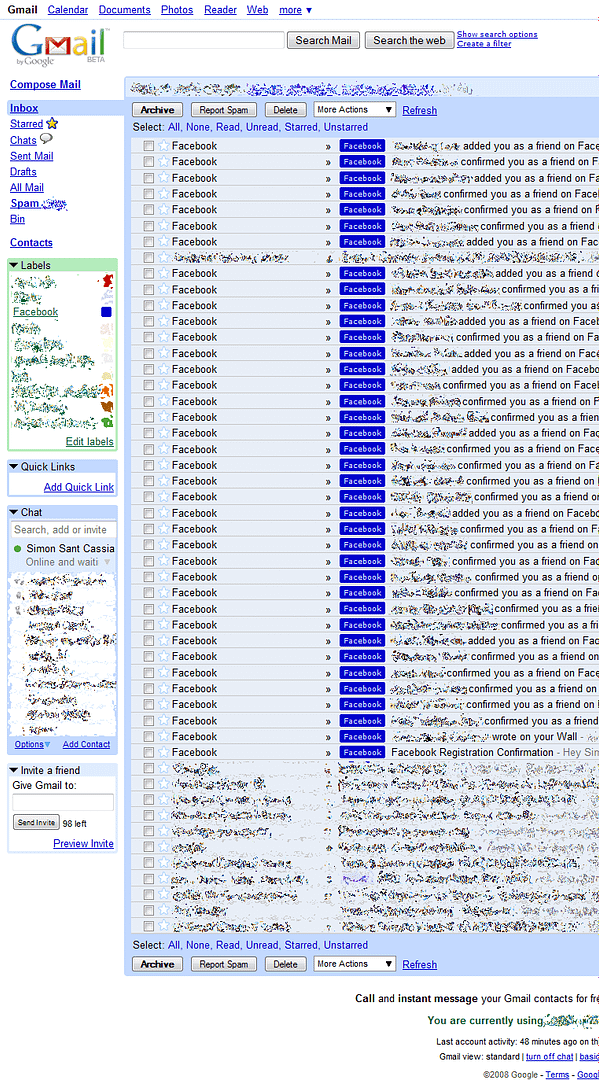
My biggest complaint is actually related to the way it handles email notifications by default. It will typically send you every notification it possibly could, immediately after it happens. This is what my gmail inbox looked like after 24 hours of joining: (click to zoom in)

At least, there is an easy way to at least reduce the amount of emails Facebook sends you. Click on the “Account” link on the top-right, and then go to the “Notifications” tab. Alternatively, here’s a direct link if you’re already signed in. You’ll find a list of options that enable you to easily reduce the level of clog in your inbox. Think about removing notifications for new friend additions.

Adding friends & the login barrier - why so many hoops?

When adding new friends, for example from the “People you may know” section, it’s reasonable to assume that before adding someone, you’d want to make sure it’s the right person. You’d want to look at their photos, etc. Sadly you need to be their friend to do these things.

I can understand why Facebook would want to stop users from visiting non-friend profiles; stopping spam, etc. However couldn’t they have implemented a privilege system, where only friends could view and comment on walls and see private contact info, but photos and a bio was accessible to everyone? (turns out they have - it's optional) I was extremely frustrated when a friend sent me a link to view their photos, but I was confronted with a login barrier. Since I didn’t have an account, I couldn’t do anything but turn back.

Room for improvement, but still pretty good

The heading pretty much sums up my experiences so far with Facebook. Did I mention how much I love the apps feature?

Continue Reading

Free High Quality Bullets

Image: Bullet Madness logoI decided it's time to give credit to the excellent set of bullets and icons that I've been using in the design of this blog. The set is called Bullet Madness, from Stylegala.

Here's a description:

Bullet madness is a list of 200 bullets, arrows and icons uploaded by our users. A handy collection of bullets for your webdesign needs - these icons can add that little extra to your design and make your site stand out from the crowd.

More bullet sets

Continue Reading

Easter Eggs in MS Word

Apparently, Microsoft Office Word is full of Easter Eggs (an "Easter Egg" is a small, undocumented procedure in a program that normally expresses interesting commentaries or gives credit to the people who labored over the program. Like their namesake, Easter Eggs normally take a while to find and can be quite elusive. )

Perhaps the most famous is the "rand" trick. Open up a new Office Word document and type the following exactly as it appears below, then press enter.

=rand(x, y)

Where 'x' is the number of paragraphs and 'y' is the number of sentences.

In the case of Office Word 2007 enter =rand.old(x, y) to get the same effect.

This will then display the pangram for x paragraphs and y sentences (The quick brown fox jumps over the lazy dog). A pangram is a sentence that contains all the letter in the alphabet. It's used for displaying fonts, etc.

More pangrams

  • =lorem() or =lorem(x, y) -- which will do the same thing but instead for Lorem Ipsum text.
  • =rand() or =rand(x, y) (only in Office Word 2007) -- displays some boilerplate text about the insert tab.
Continue Reading

7-Zip (featured freeware)

This series takes a look at some of the best free software available on the World Wide Web.

Compressed files are always useful. They're smaller, and you can pack many files into one archive  -- making the whole folders easier to share.

As useful as they are, handling compressed archives used to be a real chore. WinZip just isn't good enough for general use, because it only supports ZIP archives.

7-Zip logoEnter 7-Zip. A program that can handle most if not all of the most popular formats, including ZIP, RAR, TAR, and GZ.

It also has its own stunning "7z" compression format. I say stunning because of the excellent compression level it achieves. Download.com tested the 7z format to be up to 40% smaller than a ZIP equivalent. It also compares favourably to other archive formats out there.

It also has a right-click menu for quick commands on selected files. The interface is simple to use and is pretty functional. It could look a little prettier but I'm not complaining.

7-Zip is also great for editing the contents of Java Archives (JAR), Nokia Themes (NTH), and Firefox Extensions (XPI).

Rating: 9/10

  • Download 7-Zip here
    (I almost forgot: 7-Zip is mainly available for Windows. The command-line version is available for Linux, and there are unofficial adaptations called p7zip for Mac OS X, BeOS, and DOS (more info at the download link)
Previously featured freeware
Continue Reading

Enso (featured freeware)

This series takes a look at some of the best free software available on the World Wide Web.

Image: Enso Launcher Enso is another launcher-styler application, similar in concept to countless others, including SkyLight, SlickRun, Launchy, and QuickSilver for the Mac.

While similar in concept, it's not similar in design nor execution. Humanized, the company responsible for creating Enso, is focused towards building what they call “humane” interfaces.

In fact, the interface of Enso isn't really an interface at all. It's a transparent layer of text on top of what you're currently doing. Unlike other such apps, this one is quasimodal. This means that it won't get in your way at all, it won't de-rail your train of thought - like regular dialog boxes.

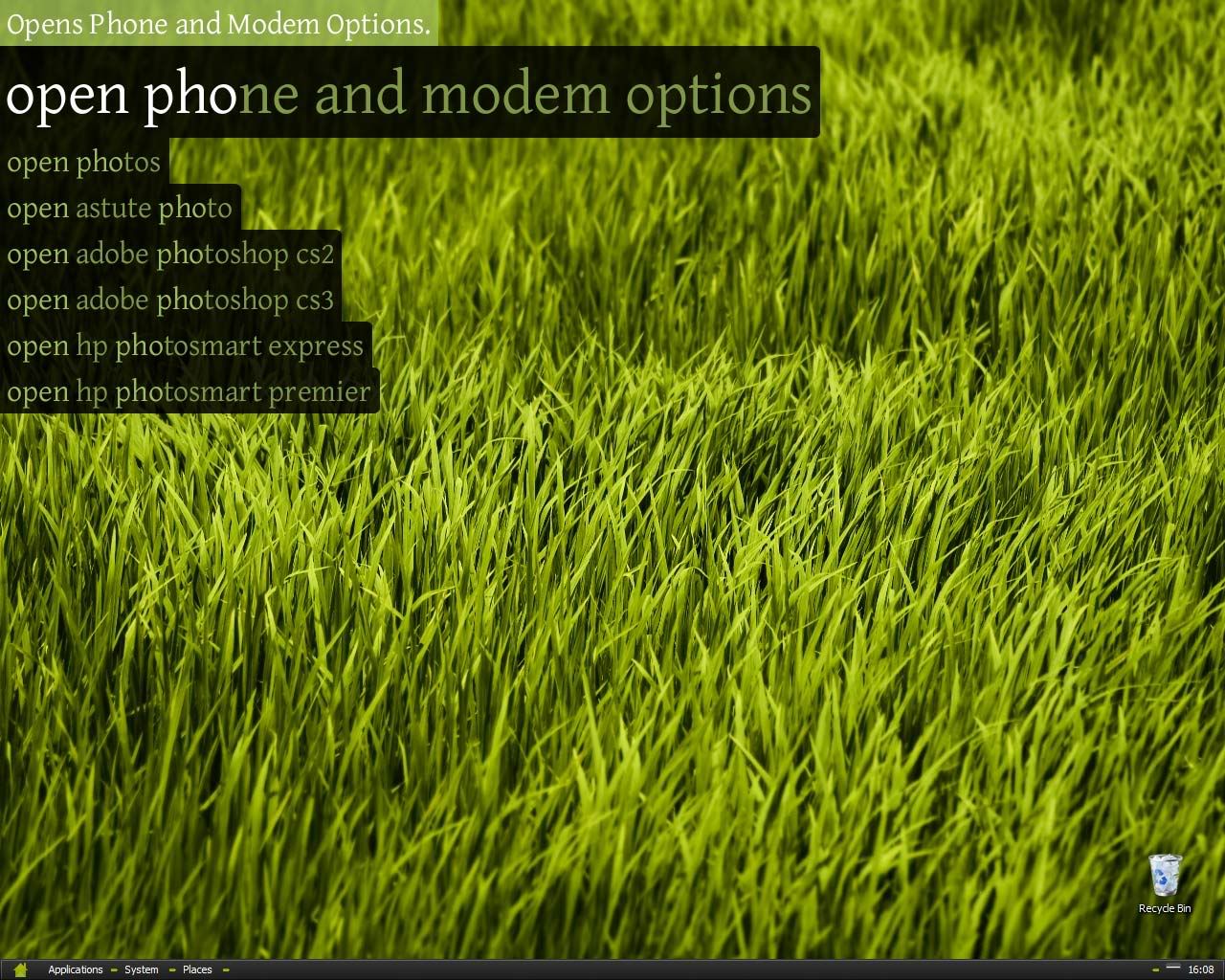
Enso screenshot

The power of Enso is also not to be scoffed at. Besides being beautifully presented in the lovely Gentium typeface, there's some serious power here. You can use the “open”  command for nearly all your programs (e.g. “open notepad”). You can also teach Enso new commands using the powerful “learn as open” command. Simply highlight the item you want to open (a URL, a local address, or even a file).

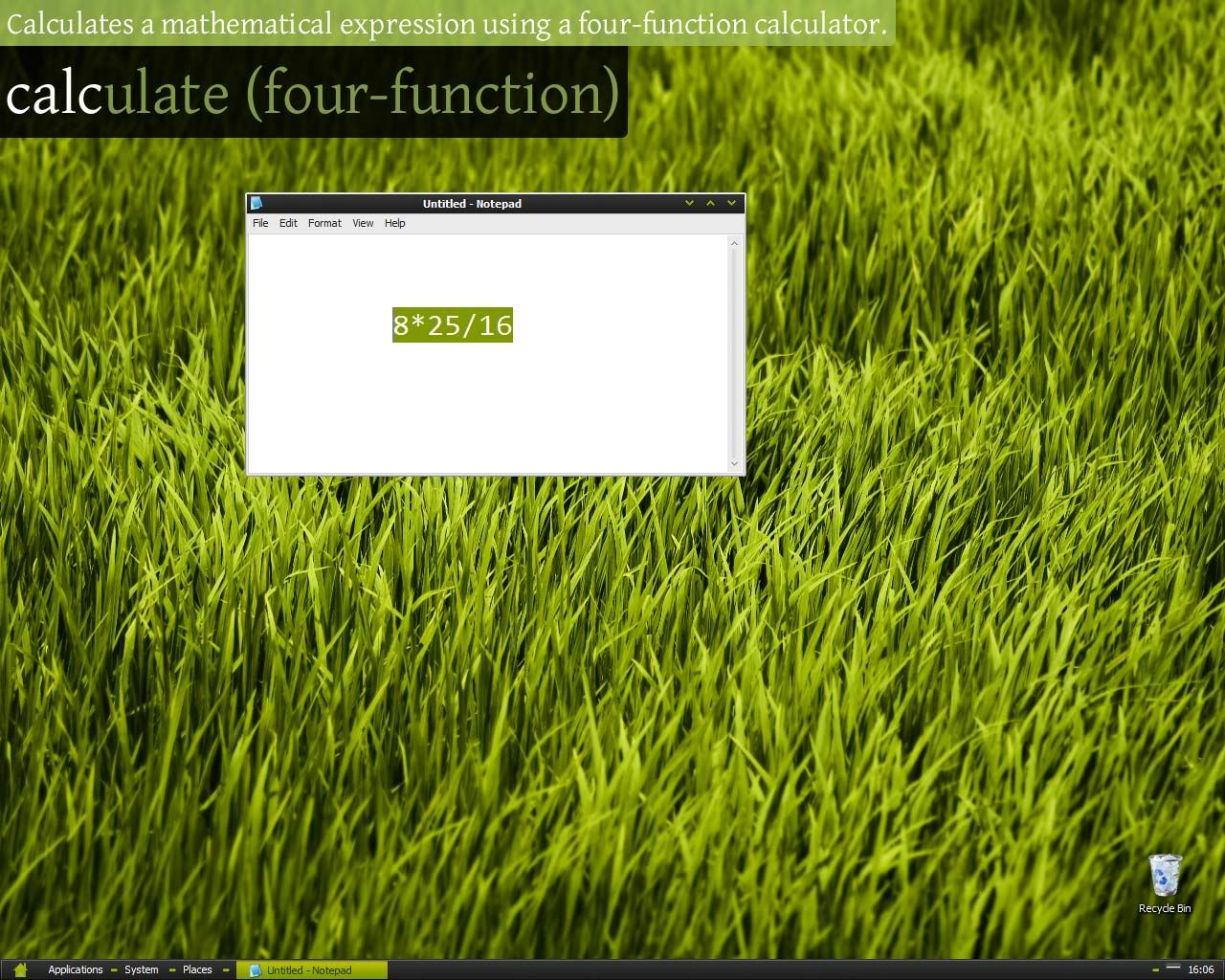
Other commands include “google search term” - a facility for a quick Google search. Enso also has pretty handy string-handling tools (“to upper case”, etc), and can even quickly calculate a sum.

I've also installed the Enso Words program, which works in tandem the launcher. It adds some more functionality, especially when handling text, such as a spell checker, and word/character counts.

Enso screenshot

Enso has really changed the way I compute. It's added a “humane” interface, and a fast, flexible way to work with my PC. It's also inspired me to build better programs, based on a more user-friendly interface.

I've used a lot of app launchers in the past, but after a few days I always felt like I was using it for the sake of using it. I felt like they were offering me no usability improvements at all after a while. Not so with Enso!

Further reading

  • Humanized - Enso homepage
  • Comparison of application launchers (Wikipedia)
  • Introduction to application software launchers
  • Continue Reading